Lesson 1: The Command Line Demystified
Listen to this lesson
Lesson 1: The Command Line Demystified
Reading time: 8 minutes
That Black Screen Isn't as Scary as It Looks
If you've ever seen someone type commands into a black screen with white text and thought "that's not for me" — this lesson is going to change your mind.
The command line (also called the terminal, console, or CLI) is simply a way to talk to your computer using text instead of clicking icons. That's it. Instead of double-clicking a folder to open it, you type a command. Instead of dragging a file to the bin, you type a command.
Why bother? Because once you get comfortable with a handful of commands, you can do things faster, automate repetitive tasks, and use powerful developer tools that don't have a graphical interface. Nearly every tool in the Builder pathway — Git, package managers, deployment — runs through the command line.
You don't need to memorise hundreds of commands. About ten will cover 90% of what you need.
Opening the Terminal
The first step is finding it. Every operating system has one, but they call it different things:
Windows: Search for "Terminal" or "PowerShell" in the Start menu. Windows Terminal is the modern option and works well. You might also see "Command Prompt" — it works but is more limited.
Mac: Open Spotlight (Cmd + Space), type "Terminal", and hit Enter. It's in Applications → Utilities if you prefer to navigate there.
Linux: Look for "Terminal" in your applications menu, or press Ctrl + Alt + T on most distributions.
You should now see a window with a blinking cursor, waiting for you to type something. That's your command line.
Where Am I? Navigating Folders
When you open the terminal, you're "standing" in a folder — usually your home folder (like C:\Users\YourName on Windows or /Users/YourName on Mac). Everything you do happens relative to where you're standing.
See where you are
Windows (PowerShell): pwd
Mac/Linux: pwd
This stands for "print working directory." It tells you exactly which folder you're currently in.
See what's in this folder
Windows (PowerShell): ls
Mac/Linux: ls
This lists everything in your current folder — files and subfolders. On Windows, dir also works.
Move into a folder
All systems: cd FolderName
This stands for "change directory." If you see a folder called Documents when you run ls, type cd Documents to go inside it.
Go back up one level
All systems: cd ..
The two dots mean "the parent folder" — the folder that contains the one you're in now.
Go straight to your home folder
Windows (PowerShell): cd ~
Mac/Linux: cd ~
The tilde (~) is a shortcut for your home folder.
Working with Files and Folders
Create a new folder
All systems: mkdir my-project
This creates a folder called my-project in your current location.
Create a new file
Windows (PowerShell): New-Item hello.txt
Mac/Linux: touch hello.txt
This creates an empty file called hello.txt.
View a file's contents
Windows (PowerShell): Get-Content hello.txt or cat hello.txt
Mac/Linux: cat hello.txt
Delete a file
Windows (PowerShell): Remove-Item hello.txt
Mac/Linux: rm hello.txt
A word of caution: The command line doesn't have a recycle bin by default. When you delete something, it's gone. Be careful with delete commands, especially ones that use wildcards (like *). When in doubt, move files to a trash folder instead of deleting them outright.
Copy a file
Windows (PowerShell): Copy-Item hello.txt hello-backup.txt
Mac/Linux: cp hello.txt hello-backup.txt
Move or rename a file
Windows (PowerShell): Move-Item hello.txt renamed.txt
Mac/Linux: mv hello.txt renamed.txt
Paths: Absolute vs Relative
When you tell the terminal where something is, you can use two types of paths:
Relative paths are based on where you currently are:
cd Documents— go into the Documents folder from herecd ../Downloads— go up one level, then into Downloads
Absolute paths spell out the full location from the root:
- Windows:
cd C:\Users\YourName\Documents - Mac/Linux:
cd /Users/YourName/Documents
Relative paths are shorter and more convenient most of the time. Absolute paths are useful when you need to be precise or when you're writing scripts.
Running Commands
Most developer tools are commands you type in the terminal. When someone says "run npm install" or "run git status," they mean: open your terminal, navigate to your project folder, and type that command.
A command usually follows this pattern:
command [options] [arguments]
For example:
ls -la— list files (ls) with detailed info (-la)mkdir my-project— make a directory (mkdir) calledmy-projectcd ~/Documents— change directory (cd) to Documents in your home folder
The options (usually starting with -) modify how the command behaves. The arguments tell it what to act on.
Tab Completion: Your Best Friend
Here's a tip that will save you enormous amounts of typing: press Tab to autocomplete.
If you're in a folder with a subfolder called my-really-long-project-name, you don't need to type the whole thing. Type cd my- and press Tab. The terminal will complete it for you.
If there are multiple matches, press Tab twice to see all the options.
This works for folder names, file names, and even command names on most systems. Use it constantly.
Getting Help
Forgotten what a command does? Every command has built-in help:
Windows (PowerShell): Get-Help command-name (e.g., Get-Help Copy-Item)
Mac/Linux: man command-name (e.g., man ls) — press q to exit the manual
You can also add --help to most commands: git --help, npm --help.
A Quick Reference
| Action | Windows (PowerShell) | Mac / Linux |
|---|---|---|
| Where am I? | pwd | pwd |
| List files | ls or dir | ls |
| Change folder | cd FolderName | cd FolderName |
| Go up a level | cd .. | cd .. |
| Create folder | mkdir name | mkdir name |
| Create file | New-Item name.txt | touch name.txt |
| View file | cat name.txt | cat name.txt |
| Delete file | Remove-Item name.txt | rm name.txt |
| Copy file | Copy-Item a.txt b.txt | cp a.txt b.txt |
| Move/rename | Move-Item a.txt b.txt | mv a.txt b.txt |
| Clear screen | cls or clear | clear |
Key Takeaways
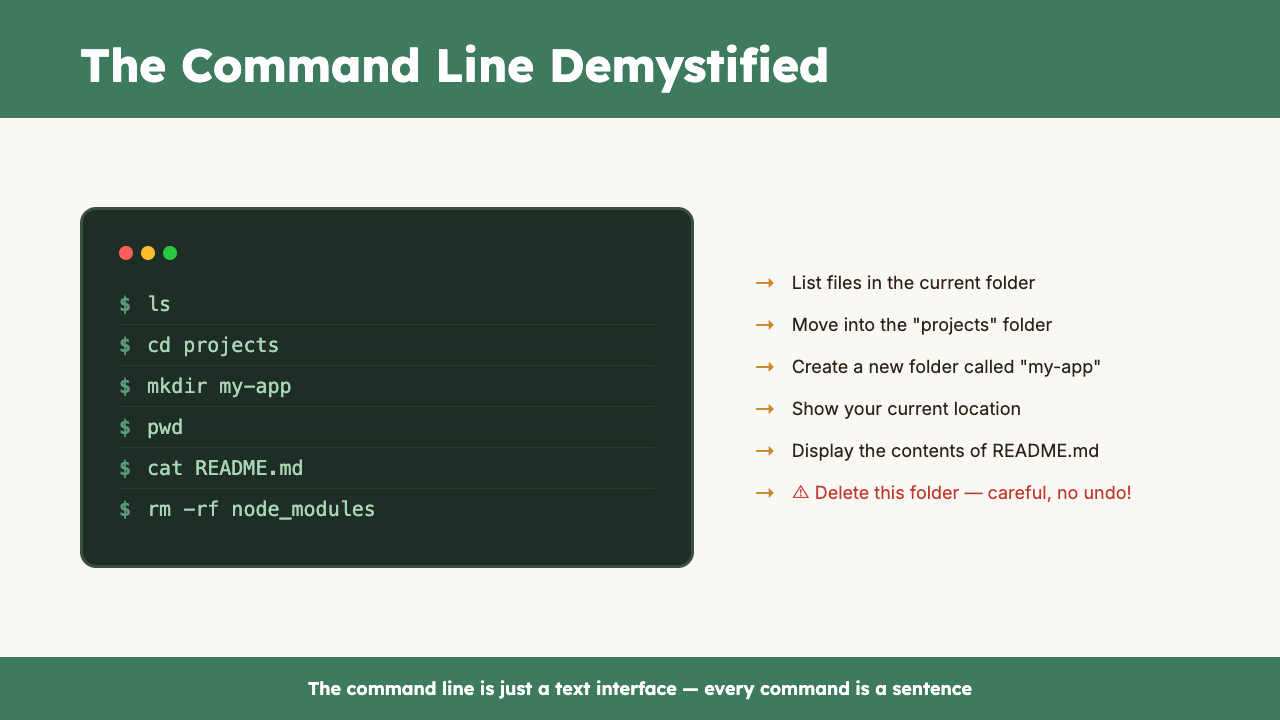
- The command line is just text-based navigation — everything you do with folders and files through clicking, you can do by typing commands.
- You only need about ten commands to handle most everyday tasks.
cdmoves between folders,lsshows what's inside,pwdshows where you are — those three are your foundation.- Tab completion saves time — press Tab to autocomplete file and folder names.
- Be careful with delete commands — the command line doesn't have a recycle bin by default.
Exercise: Command Line Walkabout
Open your terminal and complete the following, using only commands (no clicking):
- Check which folder you're in (
pwd) - List the contents (
ls) - Create a new folder called
cli-practice(mkdir cli-practice) - Move into it (
cd cli-practice) - Create a file called
notes.txt - List the contents to confirm the file exists
- Go back up one level (
cd ..) - Delete the folder (on Mac/Linux:
rm -r cli-practice; on Windows:Remove-Item -Recurse cli-practice)
If you got through all eight steps, you've got the basics down. Everything else is just learning new commands as you need them.
Quick Quiz
1. What does the cd command do?
a) Creates a new directory
b) Changes your current directory (moves you to a different folder)
c) Copies a directory
d) Deletes a directory
Answer: b) cd stands for "change directory" — it moves you from one folder to another.
2. What's the difference between a relative path and an absolute path?
a) Relative paths only work on Mac
b) Absolute paths are faster
c) Relative paths start from your current location; absolute paths spell out the full location from the root
d) There is no difference
Answer: c) Relative paths are based on where you currently are. Absolute paths start from the very top of the file system and describe the full route.
3. What does pressing Tab do in the terminal?
a) Opens a new tab
b) Inserts a tab character
c) Autocompletes file names, folder names, and commands
d) Closes the terminal
Answer: c) Tab completion is one of the most useful terminal features — it finishes typing names for you, saving time and reducing typos.
Visual overview