Lesson 4: Debugging with AI
Listen to this lesson
Lesson 4: Debugging with AI
Reading time: 8 minutes
When Things Break (And They Will)
Here's a truth that every builder learns early: code breaks. It breaks for beginners, it breaks for professionals, and it breaks for the AI writing it. The difference between someone who gives up and someone who ships a working app isn't talent — it's knowing how to respond when things go wrong.
The good news? AI is genuinely brilliant at fixing code, often better than it is at writing it from scratch. You just need to learn how to describe the problem clearly. That's what this lesson is all about.
Errors Are Just Messages
When your app breaks, you'll usually see an error message. It might look scary — a wall of red text or a cryptic string of words — but it's actually trying to help. Every error is the computer saying, "Hey, I tried to do what you asked, but I got stuck here."
There are a few common types you'll encounter:
Syntax Errors
These are typos in the code. A missing bracket, an extra comma, a misspelled word. They're the easiest to fix because the error message usually tells you exactly which line the problem is on.
Example: SyntaxError: Unexpected token '}' at line 42
That's the computer saying, "Line 42 has a bracket that shouldn't be there." Straightforward.
Runtime Errors
The code is written correctly, but something goes wrong when it actually runs. Maybe it's trying to access data that doesn't exist, or dividing by zero, or calling a function that hasn't been defined yet.
Example: TypeError: Cannot read properties of undefined
This means the code tried to use something that doesn't have a value yet. It's like asking someone to open the fridge door when there's no fridge.
Logic Errors
These are the sneaky ones. The code runs without any error messages, but it doesn't do what you expected. A calculator that adds when it should subtract. A form that saves blank entries. The app works — just not correctly.
These require you to describe the expected behaviour versus the actual behaviour.
The Art of Describing Problems to AI
When you hit an error, the quality of your fix depends entirely on the quality of your problem description. Here's a simple framework that works every time:
The Three-Part Bug Report
- What I expected to happen: "When I click the Submit button, the form data should save and a success message should appear."
- What actually happened: "Nothing happens when I click Submit. The page just sits there."
- The error message (if any): Paste the full error text, not a summary.
That's it. Those three pieces of information give the AI everything it needs to diagnose and fix the problem.
Share the Full Error
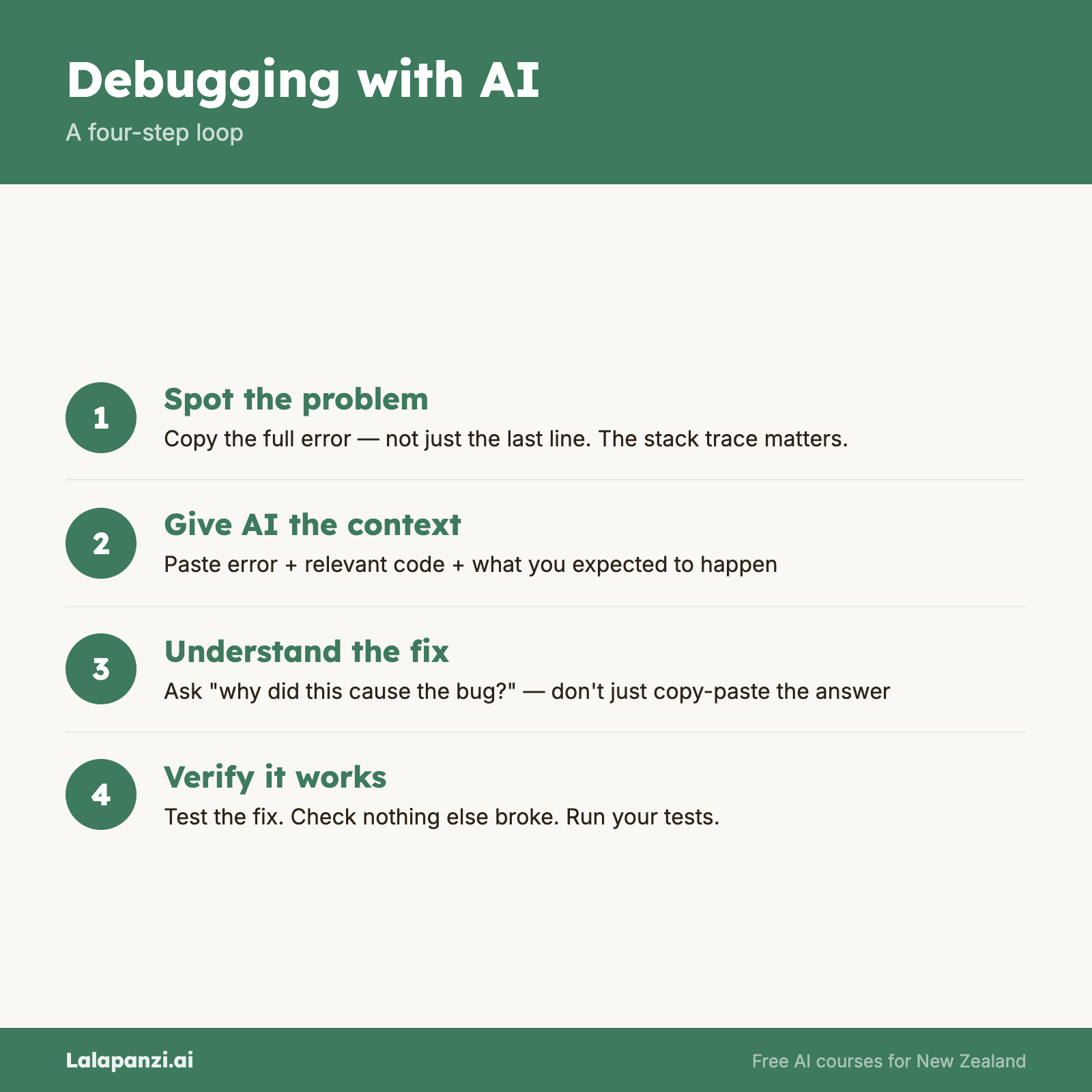
When you get an error message, copy and paste the entire thing. Don't paraphrase. Don't just say "I got an error." The specific wording matters — it tells the AI exactly what went wrong and where.
If the error is in your browser, right-click the page, select "Inspect" (or press F12), and look at the Console tab. Errors show up there in red. Copy them.
Screenshots Are Powerful
Sometimes the problem is visual — a layout that's broken, a button in the wrong place, text that's overlapping. In these cases, a screenshot is worth more than a paragraph of description.
Most AI tools now accept images. Take a screenshot, paste it in, and say something like: "The sidebar should be on the left, but it's overlapping the main content area. Here's what it looks like."
Share the Relevant Code
If you know which file the problem is in, share it. If you're not sure, share the file you were most recently working on. The AI can read the code and spot issues you'd never notice.
Iterating on Fixes
Sometimes the first fix doesn't work. That's completely normal. Here's how to handle it:
Don't start over. When a fix doesn't work, tell the AI what happened: "I tried your suggestion but now I'm getting a different error." Then share the new error. Each round of back-and-forth narrows down the problem.
Be specific about what changed. "It's partially fixed — the form submits now, but the success message doesn't appear" is far more useful than "it's still broken."
Try one fix at a time. If the AI suggests three changes, make them one at a time so you can tell which one helped (or which one made things worse).
Know when to take a step back. If you've gone back and forth five or six times and things are getting worse, it might help to describe the entire feature you're building from scratch: "I'm trying to build a contact form that saves to a database. Here's all my code. Can you review the whole thing?"
Common Beginner Scenarios
Here are situations you'll almost certainly encounter, and how to handle them:
"The page is blank." Usually means there's a JavaScript error stopping the page from rendering. Check the browser console (F12 → Console) and share what you find.
"It works on my computer but not when I share the link." Often an environment issue — missing environment variables, a database that's only running locally, or hardcoded addresses. Tell the AI where you've deployed it and share your configuration files.
"It was working yesterday and now it's not." Something changed. Think about what you did since it last worked. Did you install something new? Edit a file? Update a package? Share that context.
"The AI's fix introduced a new bug." This happens. Share both the original problem and the new one. Say: "The original issue was X. The suggested fix resolved that but now Y is happening."
Building Your Debugging Instinct
Over time, you'll start recognising patterns. You'll see a 404 error and immediately know it means "the page or file wasn't found." You'll see CORS error and know it's a security setting blocking your request. You won't need to look these up — they'll become familiar.
But that takes time, and there's no shortcut. What you can do right now is build good habits:
- Always read the error message before asking for help
- Always share the full error, not a summary
- Always describe what you expected versus what happened
- Be patient with the back-and-forth process
Debugging isn't a detour from building — it is building. Every professional developer spends a significant chunk of their time finding and fixing problems. You're not doing it wrong. You're doing it exactly right.
Key Takeaways
- Error messages are helpful, not hostile — they tell you exactly where and why something broke.
- The three-part bug report works every time: what you expected, what happened, and the error message.
- Copy the full error text — don't paraphrase or summarise.
- Screenshots help with visual bugs — paste them directly into your AI conversation.
- Iterate patiently — most fixes take two or three rounds of back-and-forth, and that's normal.
Exercise: Debug a Broken App
Take a simple project you've built (or start a new one with AI — ask it to build a to-do list app). Then intentionally break something: delete a line, change a variable name, remove a closing bracket.
Now pretend you don't know what's wrong. Open the browser console, find the error, and use the three-part bug report to ask AI to fix it. Practice the full cycle: describe the problem → get a fix → apply it → confirm it works.
Do this three times with different types of breaks. You'll be surprised how quickly the process becomes second nature.
Quick Quiz
1. What's the most important thing to include when asking AI to fix a bug?
a) A description of your entire project
b) The full error message, plus what you expected versus what happened
c) A list of every file in your project
d) The name of the programming language you're using
Answer: b) The three-part bug report — expected behaviour, actual behaviour, and the full error — gives AI the context it needs to help.
2. Where can you find error messages for a web app?
a) In the browser's Console tab (F12 → Console)
b) In your email inbox
c) In the address bar
d) They only appear in the code editor
Answer: a) The browser console is where JavaScript errors and other runtime messages appear. It's your first stop when something breaks.
3. What should you do if an AI's fix creates a new problem?
a) Start the entire project over
b) Ignore it and move on
c) Describe both the original issue and the new one, then ask the AI to address both
d) Switch to a different AI tool
Answer: c) Give the AI context about what happened — the original problem, the fix that was applied, and the new issue. Each round of feedback gets closer to the solution.
Visual overview