Module 4, Lesson 3: Data and Spreadsheets — Sorting, Cleaning, Basic Analysis
Listen to this lesson
Module 4, Lesson 3: Data and Spreadsheets — Sorting, Cleaning, Basic Analysis
Estimated reading time: 8 minutes
AI Meets Your Spreadsheet
If you work with spreadsheets — and most people do, whether they enjoy it or not — AI can save you real time. From writing formulas to cleaning messy data to spotting patterns, AI tools are surprisingly capable with tabular data.
You don't need to be a data analyst to benefit. This lesson covers practical techniques anyone can use.
Writing Formulas
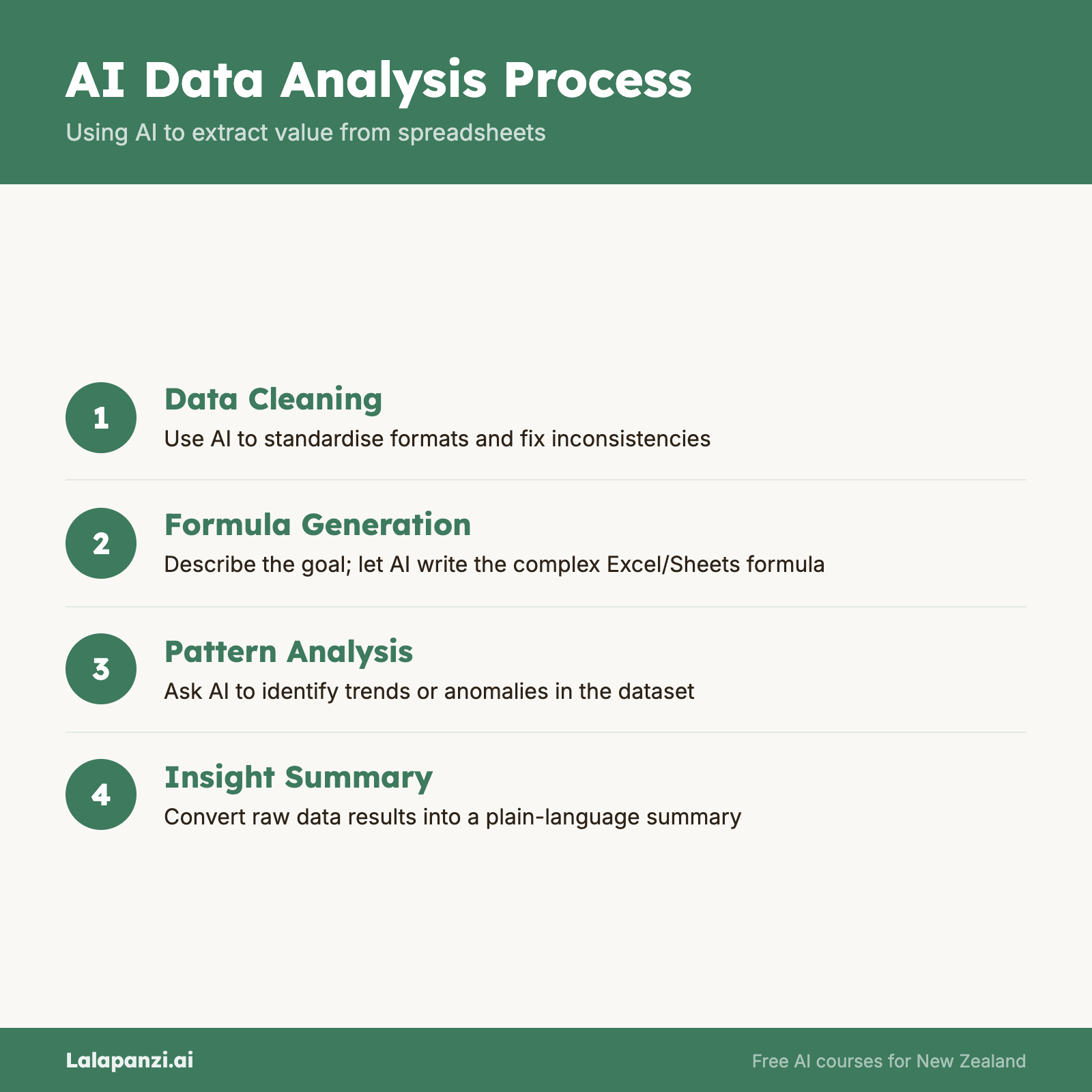
This is the quick win that gets people hooked. Instead of Googling "Excel VLOOKUP syntax" for the hundredth time, you describe what you want in plain English and the AI writes the formula.
How it works
Example prompt: "Write an Excel formula that looks up a product name in column A of Sheet2 and returns the price from column C. If the product isn't found, show 'Not listed'."
The AI will give you something like:
=IFERROR(VLOOKUP(A1,Sheet2!A:C,3,FALSE),"Not listed")
Along with an explanation of what each part does.
Practical tips
- Describe your data clearly. Tell the AI which columns contain what, and what sheet you're working on.
- Specify the spreadsheet tool. "Write this for Excel" or "Write this for Google Sheets" — they have slightly different formula syntax in some cases.
- Ask for an explanation. Adding "and explain how it works" helps you learn, not just copy-paste.
- Test the formula. AI-generated formulas are usually correct, but always check the output against a few rows you can verify manually.
Common formula requests AI handles well
- VLOOKUP / XLOOKUP / INDEX MATCH
- IF statements and nested conditions
- SUMIFS and COUNTIFS for conditional calculations
- Date calculations
- Text manipulation (extracting, combining, formatting)
- Pivot table setup instructions
Cleaning Messy Data
Real-world data is messy. Names are inconsistent, dates are in different formats, there are duplicates and blanks everywhere. AI can help you sort this out.
Approach 1: Ask for a cleaning formula
Example prompt: "I have a column of phone numbers in mixed formats — some have spaces, some have dashes, some start with +64, some start with 0. Write an Excel formula to standardise them all to the format 02X XXX XXXX."
Approach 2: Upload the data
Both ChatGPT and Claude allow you to upload spreadsheet files. You can upload a CSV or Excel file and ask:
- "Clean up this data. Standardise the date formats, remove duplicate rows, and flag any rows with missing values."
- "This spreadsheet has inconsistent company names (e.g., 'Air NZ', 'Air New Zealand', 'AIR NEW ZEALAND'). Create a cleaned version with consistent naming."
ChatGPT is particularly good at this because it can actually run code on your data — it processes the file using Python and gives you a cleaned version to download.
Approach 3: Describe the problem
If you can't upload the file (maybe it contains sensitive data), describe the issue:
Example prompt: "I have a spreadsheet with 500 rows of customer addresses. The city names are inconsistent — sometimes 'Auckland', sometimes 'AUCKLAND', sometimes 'Akld'. What's the best approach to standardise these in Excel?"
The AI will suggest approaches using formulas, find-and-replace, or Power Query — whatever fits your situation.
Basic Analysis
AI can help you understand what your data is telling you, even if you're not comfortable with statistics.
Asking questions about your data
Upload a spreadsheet and ask questions in plain English:
- "What were our top 5 selling products last quarter?"
- "Is there a trend in monthly sales over the past year?"
- "Which team members have the highest customer satisfaction scores?"
- "Are there any outliers in this expense data?"
Getting charts and visualisations
ChatGPT can generate charts directly from your data:
Example prompt: "Create a bar chart showing monthly revenue for the past 12 months from this spreadsheet. Use a clean, professional style."
It will generate the chart in the conversation, which you can then download and use in presentations or reports.
Understanding what analysis to do
If you're not sure where to start, ask:
Example prompt: "I have sales data for the past 2 years, broken down by product, region, and month. What are the most useful analyses I could run on this data? I'm trying to understand which products and regions are growing."
The AI will suggest relevant analyses and can then walk you through each one.
Using AI Within Spreadsheet Tools
Beyond uploading files to a chat-based AI, you can use AI directly within your spreadsheet application:
Microsoft Copilot in Excel
If your organisation has Microsoft 365 Copilot, you can ask questions about your data directly within Excel. Type natural-language questions and Copilot will create formulas, generate charts, and highlight patterns. It works on your data without it leaving your organisation's environment.
Google Gemini in Sheets
Gemini can help with formulas and analysis within Google Sheets. It's available through the Gemini side panel in Sheets on supported Google Workspace plans.
ChatGPT with file upload
Upload your spreadsheet to ChatGPT and it will use Python (Code Interpreter) to analyse it. This is the most flexible approach — it can handle complex data manipulation, create visualisations, and even build simple dashboards.
Privacy Considerations
A word of caution: spreadsheets often contain sensitive data — customer information, financial figures, employee details. Before uploading data to an AI tool:
- Check your organisation's policy on using AI tools with company data
- Consider anonymising data before uploading (remove names, email addresses, and other identifiable information)
- Use enterprise-grade tools (like Microsoft Copilot in Excel) for sensitive data, as they have stronger data protection
- Never upload data containing personal health or financial information to consumer AI tools without explicit approval
When in doubt, describe the data structure and ask for formulas or approaches — you can apply them to your actual data locally without the data ever leaving your computer.
Limitations
- AI can make errors with formulas. They're usually correct, but edge cases (blank cells, text in number columns, date formatting quirks) can trip them up. Always test.
- Large datasets may need chunking. Most AI tools have upload size limits. For very large files, you may need to upload a sample or break the file into parts.
- AI doesn't know your business context. It can tell you that sales are down 15% — it can't tell you why, or what that means for your specific business.
- Complex statistical analysis still needs expertise. AI can run basic calculations, but interpreting results correctly (especially for statistical significance, causation, etc.) benefits from human expertise.
Key Takeaways
- AI can write spreadsheet formulas from plain-English descriptions — just specify your data layout and the tool you're using.
- Data cleaning is one of AI's most practical strengths — it can standardise formats, remove duplicates, and fix inconsistencies.
- You can upload spreadsheets to ChatGPT or Claude for analysis, charting, and data manipulation — but be mindful of privacy.
- AI within spreadsheet tools (Copilot in Excel, Gemini in Sheets) keeps your data in your environment.
- Always test AI-generated formulas and be cautious about uploading sensitive data.
Practical Exercise
Get AI to help with your own spreadsheet.
- Choose a spreadsheet you work with regularly (or create a simple sample with fictional data if needed).
- Try at least two of these tasks:
- Formula writing: Describe a calculation you need and ask the AI to write the formula. Test it.
- Data cleaning: Describe a data quality issue and ask for a solution.
- Analysis: Upload the spreadsheet (if it doesn't contain sensitive data) and ask a question about patterns or trends.
- Document:
- Did the formula work correctly on the first try?
- How much time did this save compared to your usual approach?
- What would you do differently next time?
If your data is sensitive, use fictional data or describe the structure without sharing actual values. The learning is in the process, not the specific data.
Knowledge Check
1. What should you always do after an AI tool writes a spreadsheet formula for you?
- a) Use it immediately without checking
- b) Test it against a few rows you can verify manually
- c) Delete it and write your own instead
- d) Convert it to a different format
Answer: b) Always test AI-generated formulas — they're usually correct but can have edge-case errors.
2. Before uploading a spreadsheet containing company data to an AI tool, what should you do first?
- a) Nothing — AI tools are always safe
- b) Check your organisation's policy on AI use and consider anonymising sensitive data
- c) Print the spreadsheet first
- d) Convert it to PDF format
Answer: b) Check your organisation's policy and consider anonymising data — spreadsheets often contain sensitive information that shouldn't be uploaded to consumer AI tools.
3. Which AI tool is most capable at running actual code on your uploaded spreadsheet data?
- a) Gemini
- b) Claude
- c) ChatGPT (using Code Interpreter / Python execution)
- d) Copilot standalone chat
Answer: c) ChatGPT's Code Interpreter can execute Python code on your uploaded data, enabling complex analysis, cleaning, and chart generation.
Visual overview